




Shared hosting is defined as a web hosting model where multiple websites share the same physical server and its resources, making it the most affordable entry point for a small business website. A proper shared hosting setup for small business owners means configuring that shared environment correctly from day one, with SSL, backups, and a reliable control panel in place before you go live. Hosting providers in 2026 set 99.9% uptime as the baseline standard for any production business site. Shared hosting works best when your site serves fewer than 10,000 monthly visitors and does not handle sensitive transactions. Get those conditions right, and shared hosting delivers real value without the cost of a VPS or dedicated server.
What do you need before setting up shared hosting?
Preparation prevents the most common setup mistakes. Before you touch a control panel, you need three things locked in: a registered domain name, a hosting plan matched to your traffic needs, and a plan for SSL. Skipping any one of these creates delays that cost you credibility on launch day.
Domain name and DNS readiness
Your domain is your business address online. Register it through a trusted registrar and confirm you have access to its DNS settings. Dasabo offers domain registration and DNS management as part of its hosting setup, which keeps everything in one place and reduces configuration errors. Write down your current nameservers before you change anything. You will need them if you ever need to roll back.

Choosing the right shared hosting plan
Not all shared hosting plans are equal. Match your plan to your expected traffic, storage needs, and growth timeline. Shared hosting suits brochure or informational sites with roughly 1,000 or fewer monthly visitors best, and remains viable up to about 10,000 monthly visitors before performance starts to slip. If you plan to run an online store or collect customer data, factor that into your plan choice from the start. Entry-level shared plans handle basic WordPress or HTML sites well. Plans with NVMe SSD storage and LiteSpeed caching, like those Dasabo offers, load pages noticeably faster than plans running older disk technology.
SSL certificate and security planning
Every business website needs SSL before it goes live. Top hosting providers in 2026 include free SSL as a standard feature, so there is no reason to launch without it. SSL encrypts data between your visitor’s browser and your server, and Google uses it as a ranking signal. Plan whether you will use a free certificate from Let’s Encrypt or a paid extended validation certificate. Paid certificates add a visible trust indicator in the browser bar, which matters for service businesses where first impressions count.
Tools and access you need ready
| Tool | Purpose | Where to get it |
|---|---|---|
| cPanel or Plesk | Manage files, databases, and email | Included with most shared plans |
| FTP client (FileZilla) | Upload website files to the server | Free download |
| SSL certificate | Encrypt site traffic | Free via Let’s Encrypt or paid |
| DNS access | Point domain to hosting nameservers | Your domain registrar |
| Backup solution | Protect site data independently | Hosting plan or third-party tool |
Pro Tip: Download FileZilla before your setup day. Uploading files through a browser-based file manager works, but FileZilla handles large batches faster and shows transfer errors clearly.
How do you set up shared hosting step by step?
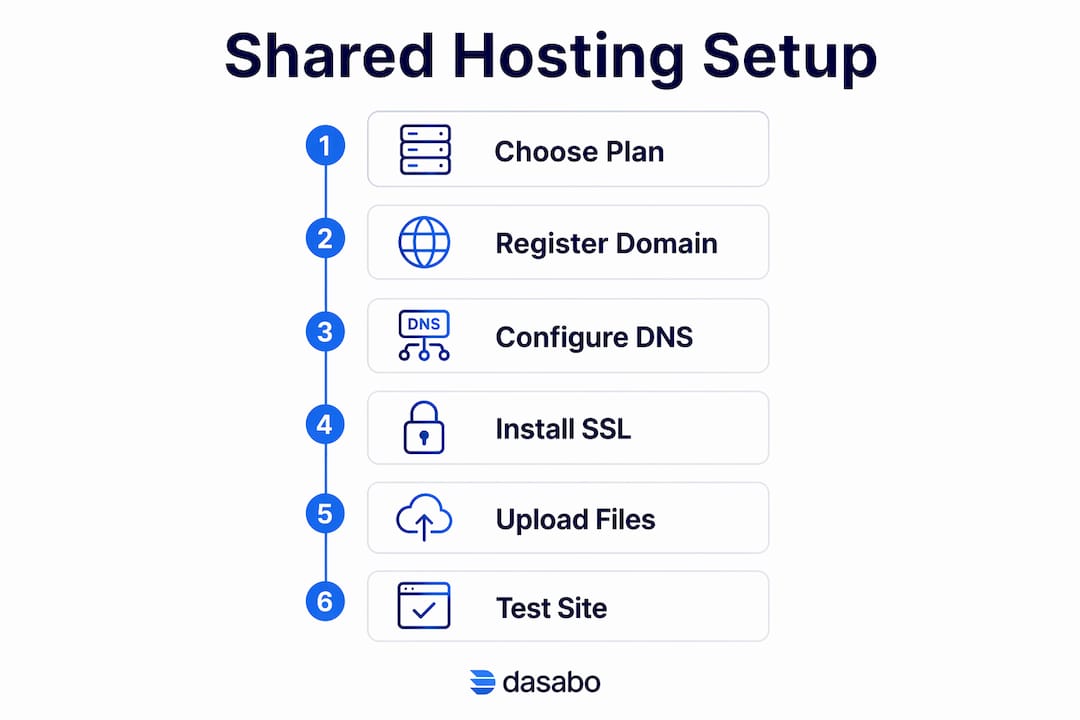
The setup process has five clear stages. Follow them in order and you avoid the most common launch-day problems.
-
Point your domain to your hosting nameservers. Log into your domain registrar and replace the existing nameservers with the ones your hosting provider gives you. This tells the internet where your site lives. DNS propagation takes 24 to 48 hours to complete worldwide. Plan your launch date with that window in mind. Do not announce your site publicly until propagation finishes.
-
Install and activate your SSL certificate. Most control panels let you activate a free SSL certificate with one click. In cPanel, look for the “SSL/TLS” section and follow the prompts. Once active, confirm your site loads at “https://” and set up a redirect so any “http://” traffic automatically goes to the secure version. This redirect is usually a single line added to your .htaccess file.
-
Upload your website files or install a CMS. If you built your site in WordPress, use the one-click installer in cPanel or Plesk. If you have a custom HTML site, connect via FTP using FileZilla and upload your files to the “public_html” folder. Double-check that your index.html or index.php file is in the root of that folder. A missing index file is the most common reason a new site shows a blank page.
-
Configure automated daily backups. Most small business owners assume their hosting provider handles full backups, but that assumption causes data loss. Set up automated daily backups through your control panel and store at least one copy offsite, such as in Google Drive or Dropbox. Test a restore before you go live. A backup you have never tested is not a real backup.
-
Connect a CDN and test on a staging environment. A content delivery network (CDN) like Cloudflare caches your site’s static files on servers around the world, cutting load times for visitors far from your hosting server. After connecting the CDN, run your site through a staging environment to catch broken links, missing images, or form errors before real visitors see them.
Pro Tip: Use Google PageSpeed Insights to test your staging site before launch. It flags specific issues like uncompressed images or render-blocking scripts that slow your first load.
How do you keep shared hosting fast and secure over time?
Setup is a one-time task. Maintenance is ongoing. A shared hosting environment requires regular attention to stay fast and secure as your business grows.
Security on shared hosting requires SSL/TLS and active monitoring even though the server itself is managed by your provider. Your provider secures the server hardware. You are responsible for your application layer, meaning your WordPress plugins, your login credentials, and your file permissions. Weak passwords and outdated plugins are the two most common entry points for attacks on shared hosting accounts.
Monitor your site speed at least once a month using a free tool like Google PageSpeed Insights or GTmetrix. Speed drops often signal a problem before it becomes visible to visitors. A site that loaded in 1.5 seconds last month and now loads in 4 seconds has something wrong, whether it is a new plugin, a traffic spike, or a “noisy neighbor” on your server.
Performance issues on shared hosting often come from other tenants using the same server resources heavily. This is called the noisy neighbor effect. Ask your hosting provider to confirm the CPU, RAM, and I/O limits on your plan before you sign up. Knowing those limits helps you recognize when a slowdown is a neighbor problem versus a problem with your own site.
Test your backup restores every quarter. Restore a copy of your site to a staging environment and confirm it works correctly. This takes about 30 minutes and is the single most underused practice among small business owners.
Know the signs that you have outgrown shared hosting. Consistent slowdowns during business hours, repeated downtime notices, and error messages about exceeding resource limits all signal it is time to upgrade. Managed hosting for small teams or a VPS gives you dedicated resources and removes the noisy neighbor risk entirely.
What are the most common shared hosting problems and how do you fix them?
Every shared hosting setup runs into predictable issues. Knowing them in advance means you fix them in minutes instead of hours.
- DNS propagation confusion. Your site may appear live in one location but not another during the 24 to 48 hour propagation window. This is normal. Use a tool like whatsmydns.net to check propagation status by region. Do not contact support about this until 48 hours have passed.
- Blank white page after WordPress install. This almost always means a PHP memory limit is too low or a plugin conflict. Deactivate all plugins and reactivate them one at a time to find the conflict. Increase the PHP memory limit in your wp-config.php file if needed.
- SSL not loading correctly. Mixed content errors happen when your site loads over HTTPS but some images or scripts still call HTTP URLs. A free plugin like Really Simple SSL fixes most mixed content issues on WordPress automatically.
- Slow site during peak hours. If your site slows down consistently between 9 AM and 5 PM, a noisy neighbor is the likely cause. Contact your host and ask them to investigate resource usage on your server. If the problem persists, upgrading your plan or moving to a VPS resolves it.
- Outgrowing shared hosting. The clearest signal is consistent resource limit errors in your control panel. When you hit those limits regularly, shared hosting has done its job. The next step is a VPS or a managed hosting plan with dedicated resources.
Shared hosting is not a permanent solution for every business. It is the right starting point for most. The mistake is staying on it too long after your traffic and complexity have grown past what it can handle reliably.
Key Takeaways
A successful shared hosting setup for small businesses requires matching your plan to your traffic, installing SSL before launch, and maintaining independent backups from day one.
| Point | Details |
|---|---|
| Match plan to traffic | Shared hosting works reliably for sites under 10,000 monthly visitors. |
| Install SSL before launch | Free SSL via Let’s Encrypt is standard in 2026; activate it before going live. |
| Never rely on host backups alone | Set up independent daily backups and test restores every quarter. |
| Monitor speed monthly | Use Google PageSpeed Insights to catch slowdowns before visitors notice them. |
| Know when to upgrade | Consistent resource limit errors signal it is time to move to a VPS or managed plan. |
What I’ve learned from watching small businesses get hosting wrong
Most small business owners treat hosting as a checkbox. They pick the cheapest plan, point their domain, and move on. That works until it doesn’t, and when it fails, it usually fails at the worst possible moment: a product launch, a press mention, or a busy sales period.
The single biggest misconception I see is that the hosting provider is responsible for everything. Your provider keeps the server running. You are responsible for your application, your backups, and your security settings. Small business owners consistently underestimate hosting security complexity and pay for it when a plugin vulnerability gets exploited or a backup turns out to be months old.
The second mistake is treating shared hosting as a long-term solution without a plan to upgrade. Shared hosting is excellent for getting started. It is not designed to carry a growing business indefinitely. I have seen sites with 15,000 monthly visitors still on entry-level shared plans, wondering why their bounce rate keeps climbing. The hosting and SEO relationship is direct: slow load times hurt rankings, and shared hosting under strain delivers slow load times.
My honest advice is to set a traffic threshold before you even launch. Decide at what point you will upgrade, write it down, and review it every quarter. That one habit prevents the scramble that happens when your site finally breaks under load.
— Alex
Dasabo’s shared hosting plans for small businesses
Small business owners who want shared hosting done right without managing every technical detail themselves should look at what Dasabo offers. Dasabo’s shared hosting plans include a 99.9% uptime guarantee, free SSL, automated backups, and access to cPanel, covering every prerequisite covered in this guide.
Dasabo manages over 5,000 websites and serves more than 20,000 customers, with LiteSpeed caching and NVMe SSD storage built into its plans for faster load times out of the box. If you are starting fresh or moving an existing site, Dasabo’s shared hosting plans give you a reliable foundation without requiring a technical background. You can also pair hosting with domain registration to keep your entire setup in one place from day one.
FAQ
What is shared hosting and is it right for my small business?
Shared hosting places your website on a server alongside other sites, sharing CPU, RAM, and storage. It is the right choice for small business websites with fewer than 10,000 monthly visitors that do not handle sensitive customer data.
How long does shared hosting setup take?
A basic shared hosting setup, including domain pointing, SSL activation, and CMS installation, typically takes two to four hours of active work. DNS propagation adds an additional 24 to 48 hours before your site is fully visible worldwide.
Do I need to buy an SSL certificate for shared hosting?
No. Most shared hosting providers in 2026 include a free SSL certificate through Let’s Encrypt as a standard feature. Activate it through your control panel before your site goes live.
How do I know when to upgrade from shared hosting?
Consistent slowdowns during peak hours, repeated resource limit errors in your control panel, and regular downtime notices are the clearest signs. At that point, a VPS or managed hosting plan gives you the dedicated resources your site needs.
What is the noisy neighbor effect on shared hosting?
The noisy neighbor effect happens when another site on your shared server uses a large share of CPU or RAM, slowing down your site. Confirming resource limits with your host before signing up helps you choose a plan with enough headroom to avoid this problem.