



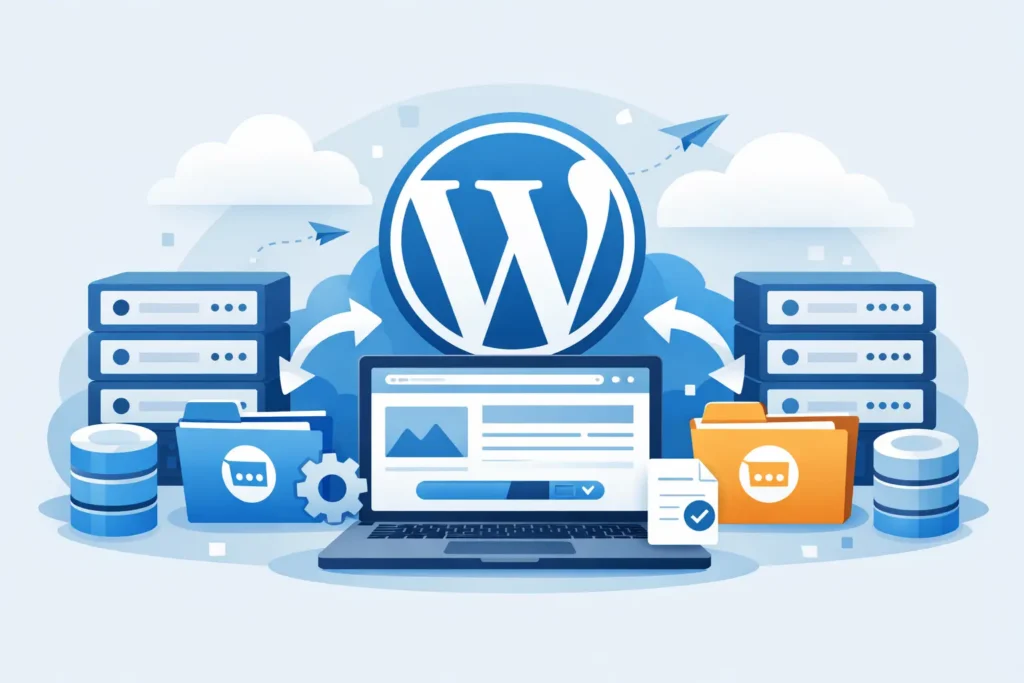
Moving a live site is where small mistakes turn into lost leads, broken pages, and unnecessary downtime. If you are figuring out come migrare un sito WordPress, the goal is not just to copy files from one server to another. The real job is to protect performance, preserve SEO signals, keep email and DNS stable, and make sure the site works exactly as expected when traffic hits.
For a personal blog, a basic migration can be simple. For a business site, store, or client project, it needs a plan. That is especially true if the site depends on caching rules, custom themes, transactional email, staging environments, or payment flows.
Come migrare un sito WordPress: what needs to move
A WordPress site is not one single file. It is a combination of the WordPress core, themes, plugins, media uploads, the database, and server-level settings that affect how the site behaves. If you move only the visible files and ignore the database, the site will not load correctly. If you move the database but miss configuration details, you may end up with login issues, broken permalinks, missing images, or mixed-content warnings after SSL is enabled.
Before starting, identify what is actually in scope. In most cases, you are moving the website files, the database, the domain connection, SSL, and sometimes email. That last part is where many migrations go wrong. Website hosting and email hosting are often treated as one package, but they may be managed separately. If you change DNS records without checking mail routing first, your website may come online while your business email stops working.
Start with a pre-migration check
The fastest migrations usually come from better preparation, not faster clicking. Begin by auditing the current site. Check the WordPress version, PHP version, plugin list, active theme, database size, and storage usage. If the site runs WooCommerce or membership tools, note any areas where data changes constantly. Orders, new users, and contact form entries can be created while you are migrating, so timing matters.
Backups come next. You need a full backup of both files and database before touching anything. If the current host offers snapshots or daily backups, verify that they are accessible and recent. A backup that cannot be restored is just a false sense of safety.
It also helps to clean up before the move. Remove unused plugins, old themes, and temporary files. This reduces transfer size and lowers the chance of conflicts. Migration is a good time to fix obvious problems, but not the right time for a full redesign. Keep the scope tight so you can isolate issues if something breaks.
Choose the right migration method
There are three common ways to migrate a WordPress site. The right one depends on your experience, the size of the site, and how much downtime you can tolerate.
A plugin-based migration is often the most practical choice for standard websites. It is faster, less manual, and usually good enough for brochure sites, blogs, and many small business sites. The trade-off is that very large sites, custom server setups, or complex ecommerce stores may run into file size or timeout limits.
A manual migration gives you more control. You copy the files, export and import the database, update the wp-config.php file, and adjust URLs if needed. This method is better for advanced users, agencies, and developers who need to control each step. It also makes troubleshooting easier because you can see exactly what changed.
A managed migration service is often the best fit when uptime, speed, and business continuity matter more than doing it yourself. If the site generates revenue or supports clients, paying for a clean move can cost less than fixing a rushed migration later.
How the migration process typically works
First, set up the new hosting environment. Match the PHP version as closely as possible at the start. If you plan to upgrade PHP, do that after the site is stable unless you already know the theme and plugins are compatible. Create the new database and note the credentials.
Next, transfer the website files. That usually includes the wp-content directory, which contains themes, plugins, and uploads. If you are doing a full manual move, you can transfer the complete site directory. Then export the database from the old host and import it into the new one.
After that, update your configuration. The wp-config.php file must point to the new database name, username, password, and host. If the domain changes too, you will also need to replace old URLs in the database. This step has to be handled carefully. A simple text replacement can corrupt serialized data if done the wrong way.
Once the files and database are in place, test the site on the new server before changing DNS. Many hosts provide a temporary URL or a hosts file workaround for previewing the site. This is the stage where you check page layouts, navigation, forms, logins, image paths, redirects, and plugin behavior.
Only after that should you update the domain’s DNS records to point traffic to the new hosting account.
DNS, email, and SSL are where migrations get expensive
The technical copy is only part of the job. DNS and service dependencies are what affect real business operations.
When you update nameservers or A records, DNS propagation can take time. Some users may see the old site for a while, while others reach the new one. That is normal, but it creates risk if content changes on both versions during the transition. For ecommerce and lead generation sites, schedule the migration during lower-traffic hours and avoid making site edits until propagation settles.
Email deserves its own check. Review MX records, SPF, DKIM, and any external mail service settings before changing anything. If your website is moving but your email is staying with the same provider, preserve the existing records. If both are moving, validate mail delivery right after DNS changes.
SSL should be activated as soon as the site is live on the new environment. If pages load over HTTPS but call images or scripts over HTTP, browsers will show mixed-content warnings. This is common after migration and usually points back to old URLs in the database or hardcoded theme settings.
Testing after launch
A migration is not finished when the homepage loads. It is finished when the site performs correctly for users and search engines.
Test the key business actions first. Submit forms. Complete a checkout if it is an online store. Verify password resets, user logins, and transactional emails. Review mobile layouts and page speed. A site that loads but becomes slower after the move has not really been improved.
Then check crawl-related basics. Make sure the site is indexable if it is supposed to be public. Review redirects, canonical behavior, robots settings, and XML sitemap generation. If URL structure changed, redirect mapping matters. Without it, rankings and traffic can drop even if the new server is faster.
Keep an eye on server logs and uptime in the first 24 to 72 hours. Some problems only show up under real traffic, especially with caching, image optimization, firewall rules, or plugin conflicts.
Common mistakes to avoid when you migrate WordPress
Most migration problems are avoidable. The usual mistakes are skipping backups, forgetting email records, testing too late, and changing too many variables at once. Moving hosts, changing themes, updating major plugins, and redesigning the site in one shot sounds efficient, but it makes troubleshooting harder.
Another common issue is assuming all hosting environments behave the same way. They do not. Resource limits, caching layers, security rules, and PHP configurations vary. A site that worked on one server may need adjustments on another, even when the files are identical.
If performance is one of the reasons for moving, pay attention to the destination environment. Better hosting should mean more than a new control panel. It should give you stronger uptime, faster response times, backup coverage, SSL support, and room to grow without rebuilding everything later. That is why many businesses choose a provider with WordPress-ready infrastructure and migration support rather than treating the move as a one-time file transfer.
For teams that want a simpler path, a hosting environment built around WordPress, daily backups, and security tools reduces the number of moving parts after launch. That matters because the safest migration is the one you do not have to troubleshoot for a week.
If you are deciding come migrare un sito WordPress, think beyond the transfer itself. A good migration protects the site you already built and sets up the next stage of growth with fewer risks, better speed, and less operational friction.