



Backups in web hosting are defined as copies of your website’s files and database, stored separately from the live environment, to protect against data loss and enable recovery. The role of backups in hosting goes far beyond a simple safety net. Hardware fails, malware spreads, and human error happens on every type of site, from a small business blog to a high-traffic e-commerce store. Without a reliable backup strategy, a single incident can erase months of work in seconds. Understanding what backups include, how long they are kept, and where they are stored is the foundation of any serious data protection plan.
What does the role of backups in hosting actually cover?
Backups in hosting protect your site by creating restorable copies of everything that makes your website run. The industry term for this practice is “disaster recovery,” and it applies whether you are recovering from a server crash, a ransomware attack, or a botched plugin update. A backup is only as useful as what it contains, and that is where most website owners get caught off guard.
A complete backup must include both your website files and your database. Neither alone is enough to restore a working site. Your files cover everything visible and functional: themes, images, plugins, custom code, and configuration files. Your database holds the dynamic content that changes daily, including posts, orders, user accounts, settings, and form submissions.

The risks of an incomplete backup are real and immediate. A file-only backup restores your site’s appearance but loses all content created since the last full backup. A database-only backup restores your content but leaves you with no functional site to display it. Both components must be present for a full recovery.
What a complete backup contains
- Website files: themes, templates, images, videos, and uploaded media
- Plugin and extension files: all installed software and their configuration data
- Core application files: the CMS codebase, such as WordPress core files
- Database: posts, pages, products, orders, user accounts, and site settings
- Configuration files: server-level settings like
.htaccessandwp-config.php
Missing any one of these categories means your restore is incomplete. A file-only or database-only backup cannot fully recover a website. That is the clearest definition of backup completeness in hosting.
How do backup retention policies affect your recovery options?
Retention policy is the length of time your host keeps backup copies available. It is one of the most overlooked factors when website owners choose a hosting plan, and it is often the detail that determines whether recovery is possible at all.
Many basic hosting plans retain backups for only 24 hours. That window is dangerously short. Malware infections often go undetected for several days, meaning your most recent clean backup may already be overwritten by the time you realize something is wrong.
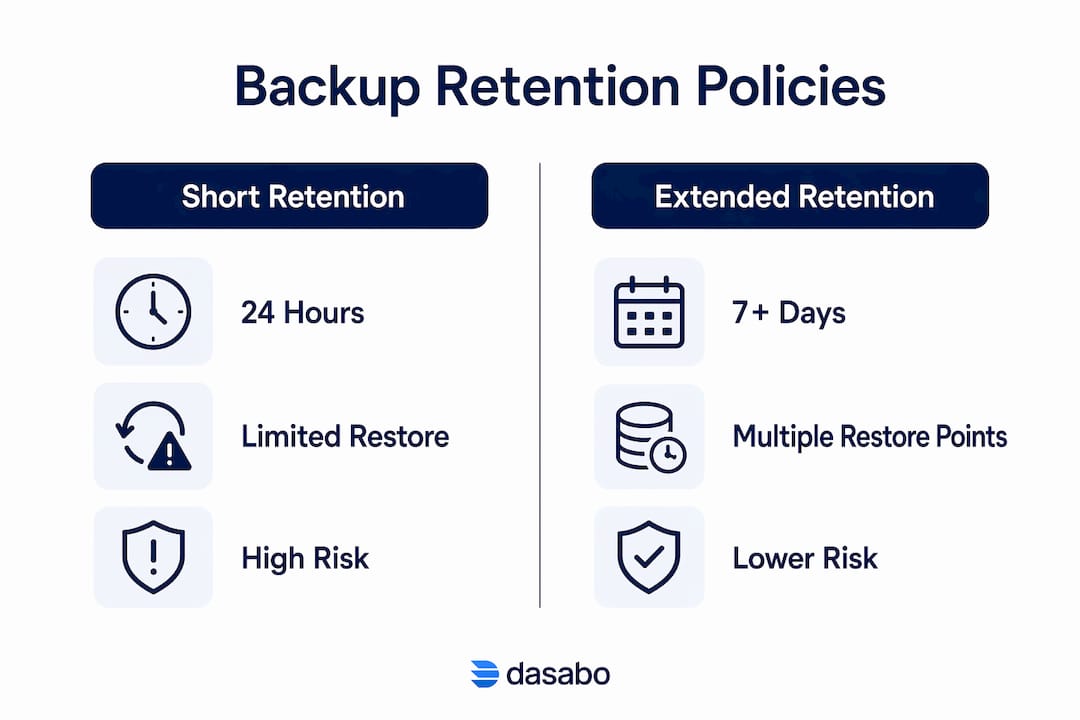
The minimum recommended retention period is 7 days. Better hosting plans offer 14 to 30 days or longer. Longer retention gives you multiple restore points to choose from, which matters when the exact moment of infection or corruption is unclear.
Here is how retention periods compare in practice:
- 24-hour retention: You can only recover to yesterday’s snapshot. Any malware active for more than a day may already be in your backup.
- 7-day retention: You have a full week of restore points. This covers most plugin conflicts and minor malware incidents.
- 14-day retention: You can recover from slower-spreading infections and catch errors that took days to surface.
- 30-day retention: This is the standard for professional and e-commerce sites. It covers most real-world attack scenarios.
Pro Tip: Ask your host directly how many restore points they keep, not just how far back they go. Daily backups for 30 days means 30 restore points. Weekly backups for 30 days means only 4.
The practical lesson is straightforward. A 24-hour retention window is not a backup strategy. It is a false sense of security dressed up as a feature.
Plugin-based backups vs. hosting-level backups: which is more reliable?
The method your backup uses to run determines how safe that backup actually is. Two approaches dominate the market: plugin-based backups and hosting-level backups. They are not equal in reliability.
Plugin-based backups run on the same server as your live website. If that server fails, the plugin backup stored on the same machine is lost along with your live site. This is the core vulnerability of plugin-based solutions. They are convenient and easy to configure, but they share every risk with the site they are supposed to protect.
Hosting-level backups operate independently of your website’s CMS. They do not run through WordPress or any other application layer, which means a site crash or plugin conflict cannot interfere with the backup process. They also avoid the performance drag that plugin backups create when running large file transfers during peak traffic hours.
| Feature | Plugin-based backups | Hosting-level backups |
|---|---|---|
| Runs independently of the site | No | Yes |
| Affected by server failure | Yes | No |
| Impact on site speed | Possible slowdown | None |
| Off-site storage by default | Rarely | Often |
| Requires CMS to function | Yes | No |
Backups stored on the same server as the live site provide minimal real protection. A hard drive failure or server compromise can erase both the live data and the backup at the same time. Off-site or geographically separate storage eliminates that shared vulnerability.
Pro Tip: If you use a plugin backup tool for WordPress, configure it to push copies to an external location like cloud storage. That one step converts a weak backup into a genuinely useful one.
For WordPress hosting specifically, the safest setup combines hosting-level automated backups with an independent off-site copy. Plugin tools work well as a supplement, not as the primary solution.
Best practices for implementing and verifying your backups
A backup that has never been tested is not a backup. It is a file that might work. The difference between those two things becomes clear only when you actually need to restore your site.
The following practices define a reliable backup setup for any website owner or digital manager:
- Automate your backups. Manual backups get skipped. Automated daily backups run without depending on anyone remembering to start them.
- Store backups off-site. Backups stored on the same server share every vulnerability with your live site. Use a separate geographic location or cloud storage.
- Test your restore process. Regularly testing backup restoration is the only way to confirm your backups actually work. Run a test restore on a staging environment at least once per quarter.
- Use independent backup solutions for critical sites. Supplementing hosting backups with an independent solution reduces reliance on a single provider and protects against host-side failures.
- Know your host’s restoration policy. Some hosts charge a fee to restore from backup. Others offer self-service restore tools. Clarify this before you need it.
- Match retention to your site’s risk profile. An e-commerce site processing daily orders needs 30-day retention. A static brochure site may manage with 7 days.
Pro Tip: After any major site update, such as a theme change or plugin upgrade, trigger a manual backup immediately. Do not wait for the next scheduled run.
The hosting infrastructure you choose sets the ceiling for what backup features are available to you. Hosts that offer self-service restore, off-site storage, and configurable retention periods give you the most control. Those that offer only daily snapshots with 24-hour retention leave you exposed.
Understanding client hosting management also means knowing which backup responsibilities fall on you and which fall on your host. Never assume the host covers everything. Confirm it in writing.
Key Takeaways
Reliable backups require both complete data coverage and long enough retention to catch problems that surface days after they begin.
| Point | Details |
|---|---|
| Completeness is non-negotiable | Every backup must include both website files and the database to enable a full restore. |
| Retention period determines recovery options | A minimum of 7 days is recommended; 30 days is the standard for professional and e-commerce sites. |
| Hosting-level backups outperform plugin backups | Server-level backups run independently, avoid performance impact, and survive site-level failures. |
| Off-site storage removes shared risk | Backups on the same server as the live site can be lost in the same incident that destroys the site. |
| Test restores before you need them | Untested backups may fail at the worst possible moment; quarterly restore tests confirm real recoverability. |
Why “backups included” rarely means what you think
The phrase “backups included” in a hosting plan is one of the most misleading claims in the industry. I have reviewed dozens of hosting agreements over the years, and the gap between what that phrase implies and what it actually delivers is consistently wider than website owners expect.
The most common surprise is retention length. Clients discover their host kept only 24 hours of backups after a malware infection that went undetected for three days. At that point, every available restore point is already compromised. The backup existed. It just could not help.
The second issue is storage location. A backup stored on the same physical server as your live site is not an independent copy. It is a duplicate that shares every hardware risk with the original. True protection requires geographic separation, not just a different folder on the same drive.
My recommendation is to treat your host’s included backups as a baseline, not a complete solution. For any site that generates revenue or holds user data, add an independent backup layer with its own off-site storage. Review your backup settings every six months, and run a test restore at least once per quarter. Backups are not a set-and-forget feature. They require the same periodic attention as any other part of your site’s infrastructure.
— Alex
Dasabo’s approach to backup protection
Dasabo builds backup protection directly into its hosting plans, so you are not left piecing together a solution from third-party tools.

Dasabo’s hosting plans include automated backups with clear retention policies, self-service restore tools, and off-site storage options that remove the shared-server vulnerability. Whether you run a shared plan or a dedicated server, the backup infrastructure operates independently of your live site. Dasabo’s 24/7 support team can walk you through restoration if you need help, and the platform’s 99.9% uptime guarantee reflects the same reliability standards applied to its backup systems. For website owners who want protection without complexity, Dasabo removes the guesswork from backup management.
FAQ
What is the role of backups in web hosting?
Backups in web hosting create restorable copies of your website’s files and database, stored separately from the live environment. They protect against data loss from hardware failure, malware, human error, and other incidents.
How often should a hosting backup run?
Daily automated backups are the standard for most websites. High-traffic or e-commerce sites benefit from more frequent backups, such as every few hours, to minimize data loss between snapshots.
What is the minimum backup retention period I should accept?
The minimum recommended retention is 7 days. Hosts that offer only 24-hour retention leave you exposed to malware and errors that take days to surface.
Are plugin-based backups safe enough on their own?
Plugin-based backups are not sufficient as a standalone solution. They run on the same server as your live site, meaning a server failure can destroy both the site and the backup simultaneously.
How do I know if my backups actually work?
Run a test restore on a staging environment at least once per quarter. A backup that has never been tested cannot be trusted to work when you need it most.